01 / Plan & build
Which pipes and cables are planned here?
Record planned connection points and routes for pipes and cables. Add photos before plastering, then update the records to show what was actually installed.
 Home Memory Studio
Home Memory Studio
A Windows application for documenting your home and everything in and around it. Record rooms, equipment, pipes and cables. Link photos, manuals and maintenance work to each item so you can find the information you need later.
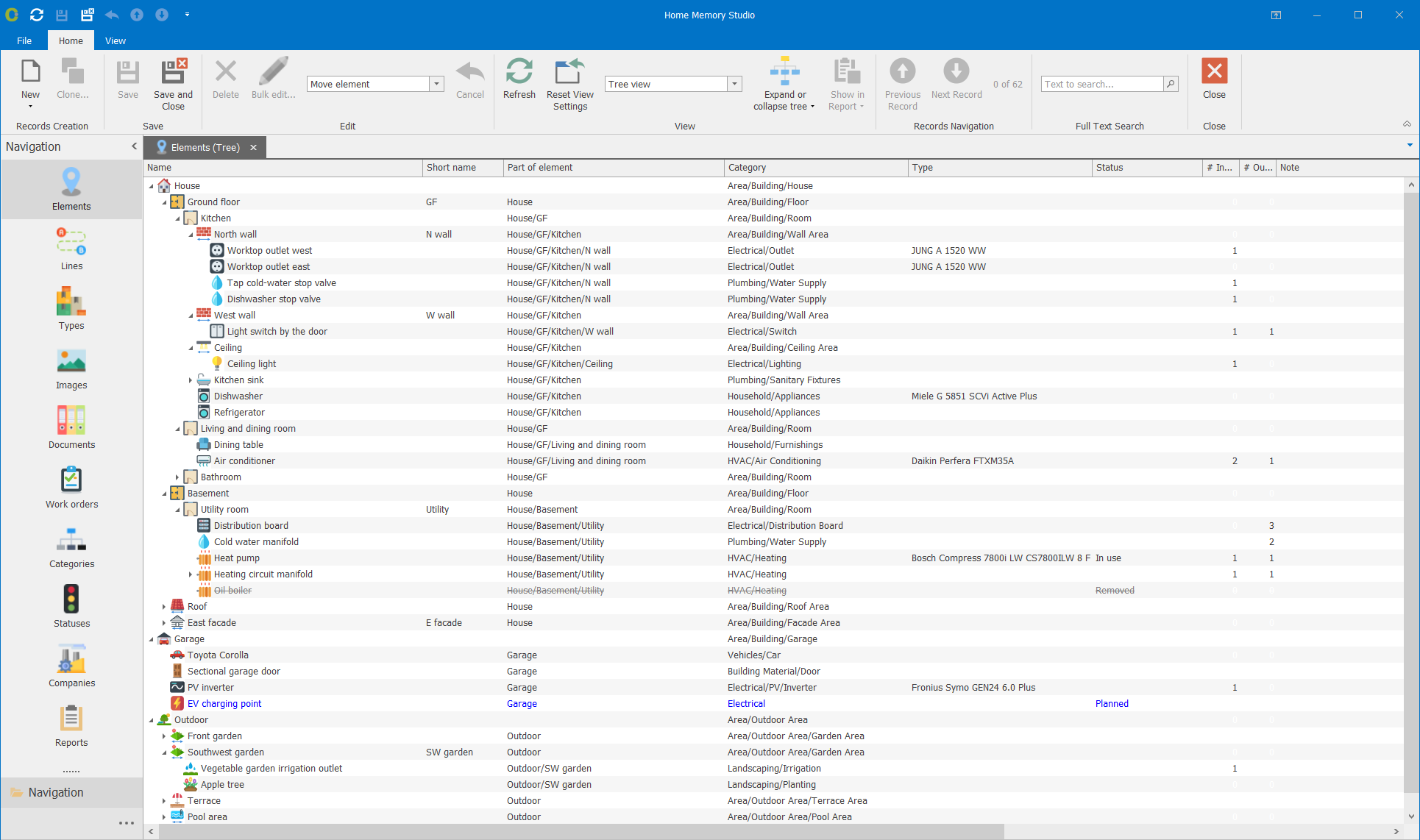
From the first plan to the next renovation
When you build, renovate or look after a home, you collect information you may need again. Studio keeps it organized so you can find it years after the work is done.
Record planned connection points and routes for pipes and cables. Add photos before plastering, then update the records to show what was actually installed.
Trace a pipe from its valve to its outlet. Keep the route, dimensions and photos with the pipe record so you know where it runs when you next renovate.
Find the right equipment manual, check previous work and record the next job. Keep the history when something is repaired, replaced or removed.
Beyond heating, wiring and plumbing. You can also document furniture, tools, vehicles and your garden. Start with the items you will want information about later.
A closer look
In the garden
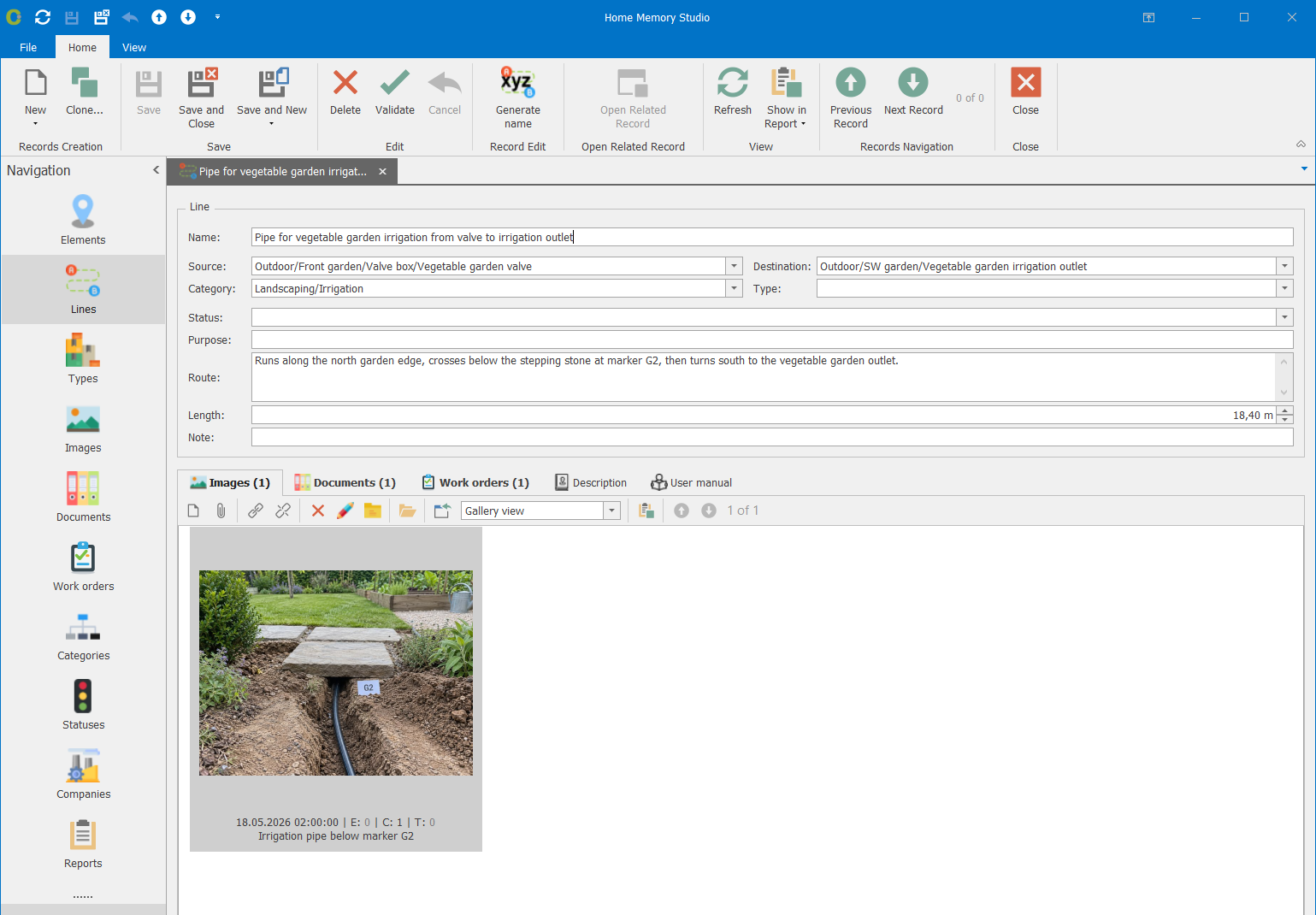
Before extending the irrigation system, check which valve supplies the bed and where the existing pipe runs. The installation photo stays linked to the pipe it documents.
Valve → pipe → outlet
Route, length and installation photo in one record.
In the utility room
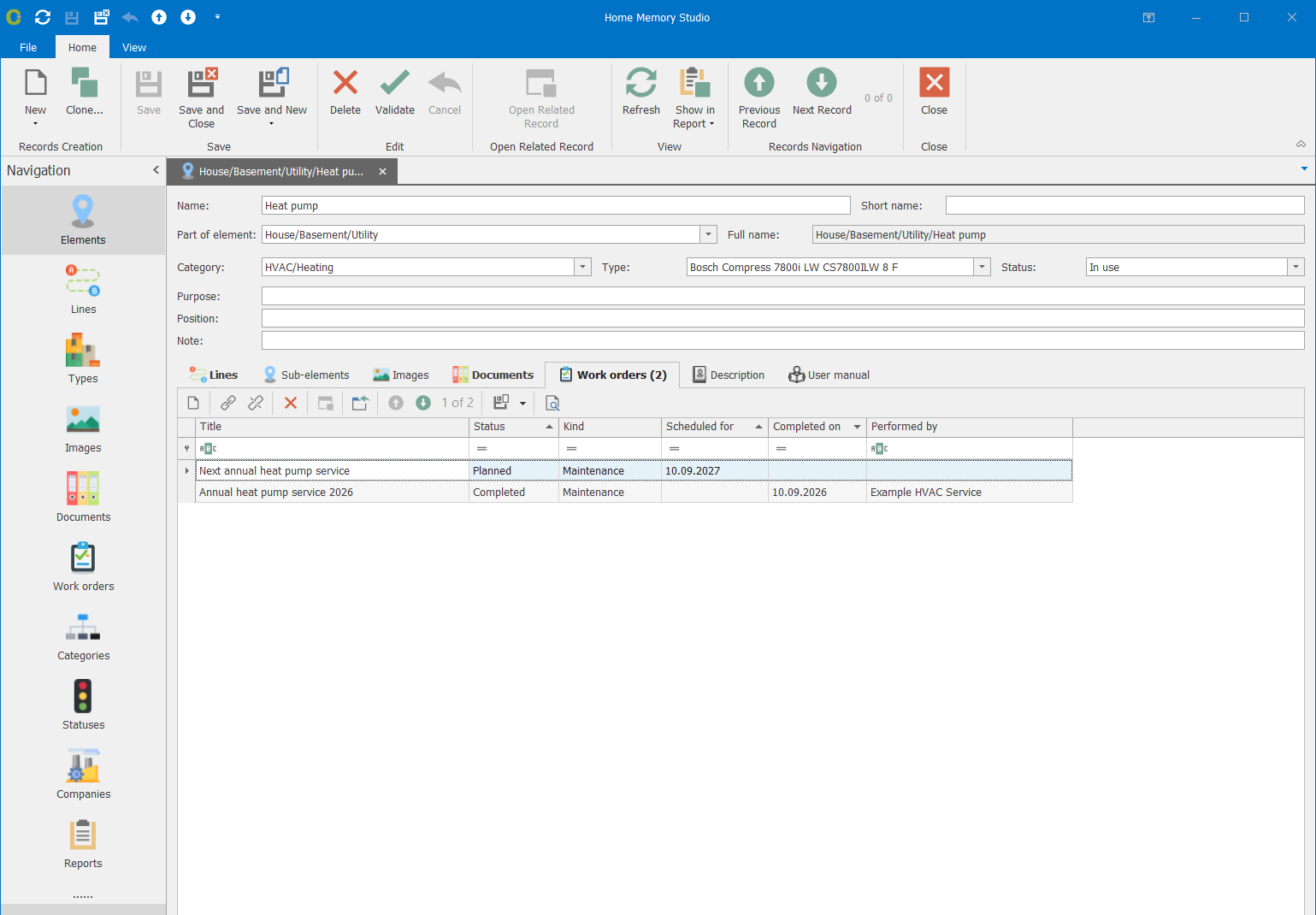
Record your heating system's model and link the relevant manuals and documents. Add completed maintenance and planned work to prepare for the next service visit.
The model, documents and maintenance history for the same heating system.
Useful to others
Add clear operating and maintenance instructions for the people living in the house. Explain which valve shuts off the dishwasher's water supply or when the next service is due. Keep technical descriptions for repairs separate from these instructions.
The User manual report view collects these instructions and leaves out technical descriptions. Export the report as a PDF to share with family members or someone looking after the house. They can read it without installing Studio.
Windows application + optional AI
You can also read and update your records through an AI assistant. Studio includes an MCP interface that connects a compatible assistant to your database. If the assistant can access files and run programs on your computer, it can handle the setup for you.
Questions to ask about your records
Your database stays on your computer. AI access is optional and uses an assistant you choose and configure separately. Depending on your setup, that assistant may send information from your records to your chosen AI provider's cloud services.
Start small
You don't need to document a whole house before Studio becomes useful.
Create a local database and start with a room, a garden project or a piece of equipment you want to keep track of.
Record the model number, link a manual or add a note about the last repair. Document pipes and cables whose routes you will need to trace later.
Record new work, update the details and back up your database together with its linked photos and documents.
Where Studio comes from
Home Memory Studio grew out of Smartconstruct, a desktop application I started developing in 2013 to plan and document my own house. Practical use has shaped which information the application records and how it connects that information. AI access came later and builds on that foundation.
Before you start
The Windows desktop application and its optional MCP connection. Studio is available in English and German. Early Access is free. The getting started guide covers installation and everyday use.
Home Memory MCP is the free, open-source server for working with structured home information through an AI assistant. Studio provides a Windows interface and additional features for product information, photos, documents and work orders. Studio is proprietary software and is free during Early Access. It includes its own MCP server so your assistant can read and update these additional records too. You do not need to install Home Memory MCP first.
Studio uses a local database. Linked photos and documents remain separate files, so a complete backup needs both the database and those files. The guide explains backup and restoration.
You need a separately configured, compatible AI assistant. Studio includes the MCP connection, but no AI service or subscription. Close the database in Studio before accessing it through the assistant, then reopen it to continue in the desktop application. See the guide for setup.
The ZIP contains the Windows application and its MCP server. Extract it into a folder in your user profile and start Studio from there. An AI assistant with access to your computer can also handle extraction and MCP setup. This requires no installer wizard or administrator rights. The MSI adds Start menu and desktop shortcuts and registers Studio under Open with for .scd files. The ZIP does not add these automatically. Choose a download and follow the setup guide.
Early Access programs are unsigned. Windows or your browser may show an unknown publisher or reputation warning. This also applies to programs extracted from the ZIP. The guide explains file verification and both setup options.
Make a separate copy of your database and connect your assistant to Studio's MCP server. The transition guide explains how to upgrade the database and set up AI access.
Home Memory Studio grew out of Smartconstruct. Before opening an existing Smartconstruct database in Studio, read the guide.
Free Early Access · Windows
Try Studio with a device, a room or a real project. Tell me what helps, what is unclear and what is missing.
Both include the Windows application, its MCP server and an optional skill with documentation guidance for your AI assistant. The installer adds Windows shortcuts. To use the ZIP, extract it into a writable local folder. The programs are not yet digitally signed.
Before extracting or running the downloaded file, check that its SHA256 checksum matches the value shown above.